Requirements management and traceability
1. Creating and linking requirements
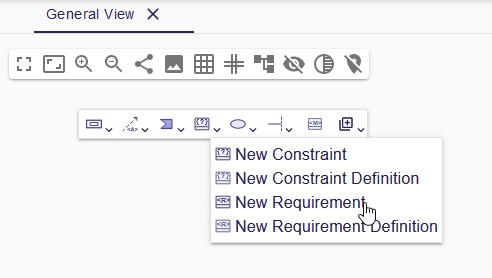
SysON supports integrating and defining requirements with the General view. A requirement is a type of constraint that represents a stakeholder constraint that a solution must satisfy. For example, a requirement can specify a vehicle’s maximum speed. From the General view diagram, users can create a new requirement from the diagram background by clicking to display the toolbar.
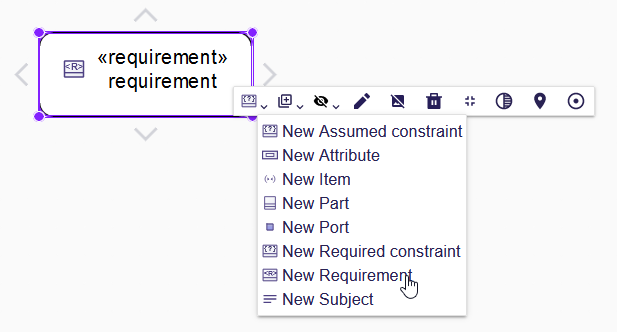
Users can also create a requirement inside another element, such as another requirement.
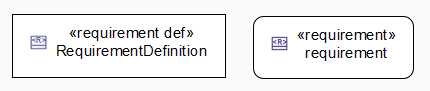
A Requirement Definition is represented by a rectangular node style, whereas a Requirement Usage is represented by a rectangular node style with rounded corners.
Currently, General view diagrams allow only Requirement Definitions and Requirement Usages to be created. Satisfy relationships that define connections between requirements are not yet available. Additional work on requirements is planned.
Feel free to contact us for more details.
2. Requirements view
Users can view and edit requirements in a Package (or any other element) in the dedicated Requirements View.
To create a Requirements View, right-click on a Package (or any other element) in the Model Explorer and select New Representation, then in the opened popup, select the Requirement Table View and set a name.
A new Requirements View looks like this:
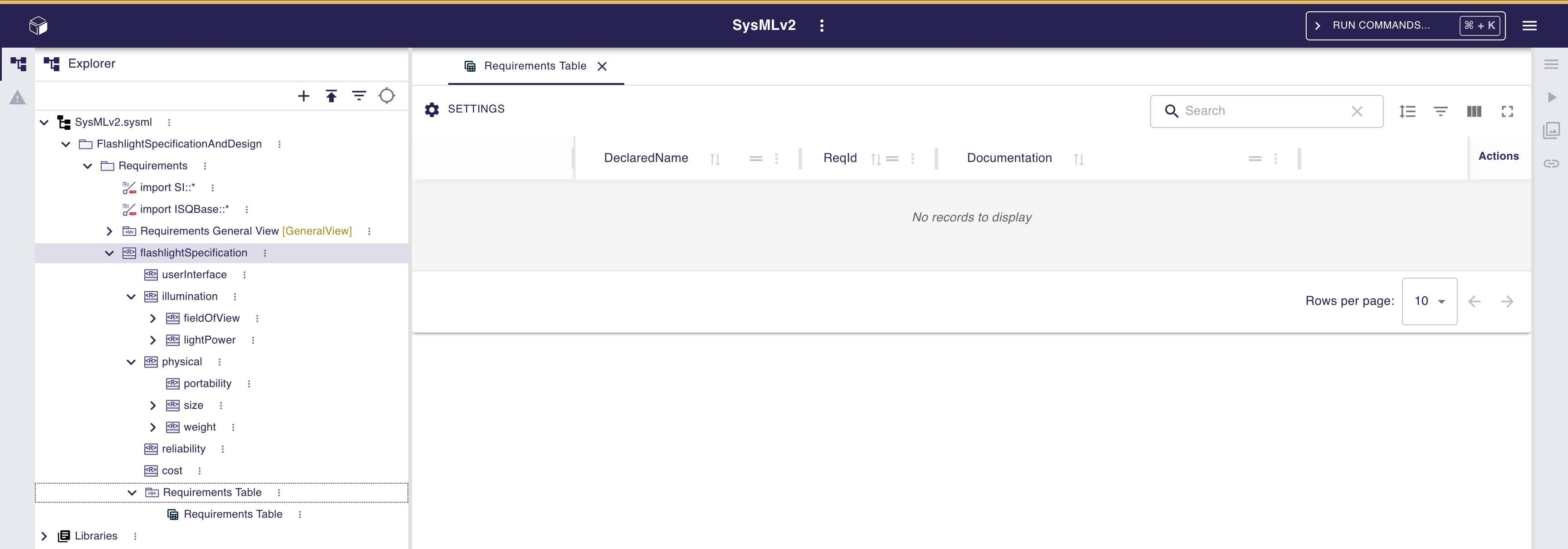
It is empty when created.
To populate the Requirements View, use the Import all existing requirements button in the toolbar.
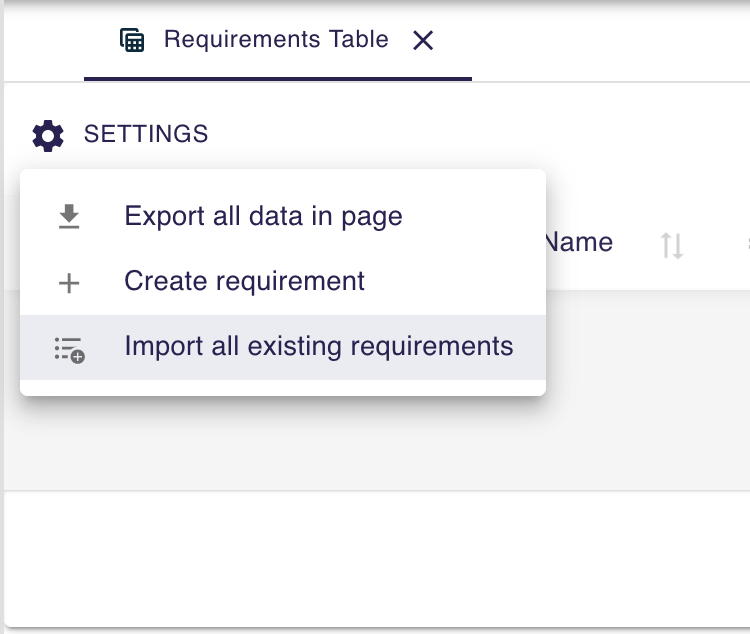
After clicking this button, all requirements in the selected element are imported and displayed in the Requirements View. Sub-requirements are not yet imported or displayed in the table; this is planned for a future release.
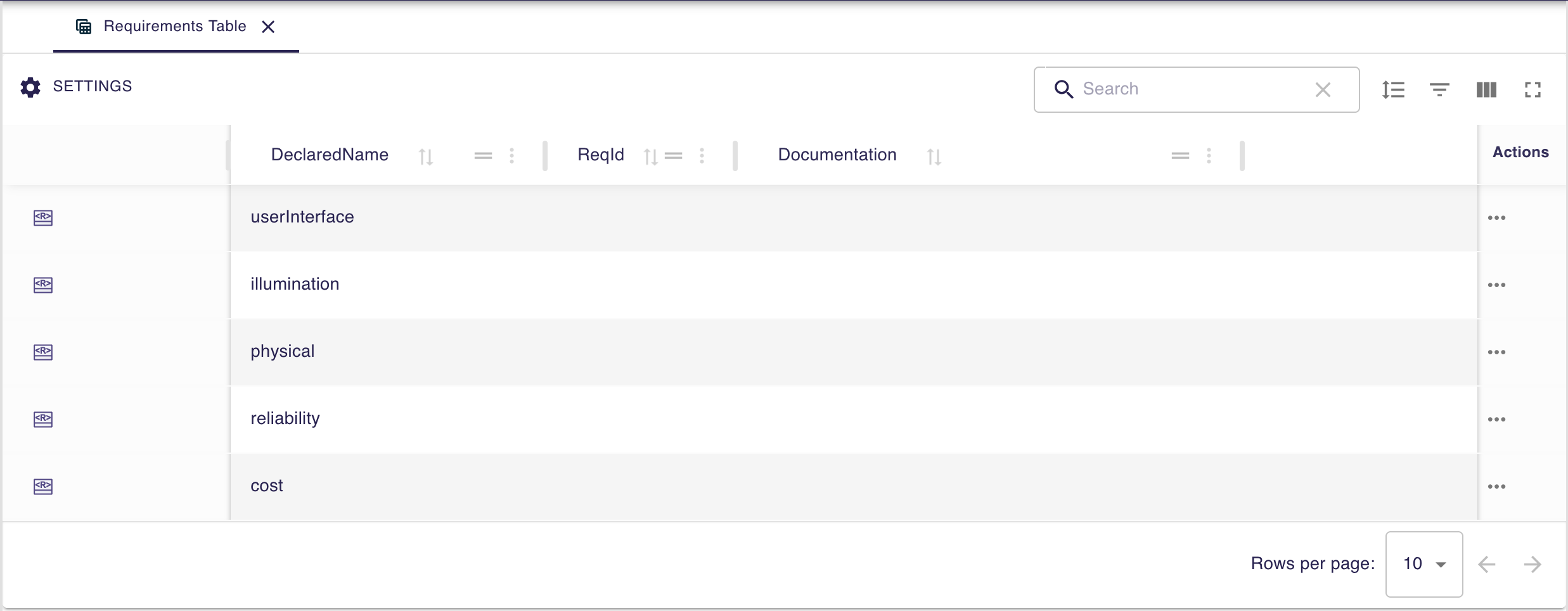
Users can edit requirement properties directly in the table cells. For example, the declaredName property can be edited by clicking on the corresponding cell. The same applies to the reqId property and documentation.
Users can also create new requirements directly in the Requirements View by clicking the New Requirement button in the toolbar.
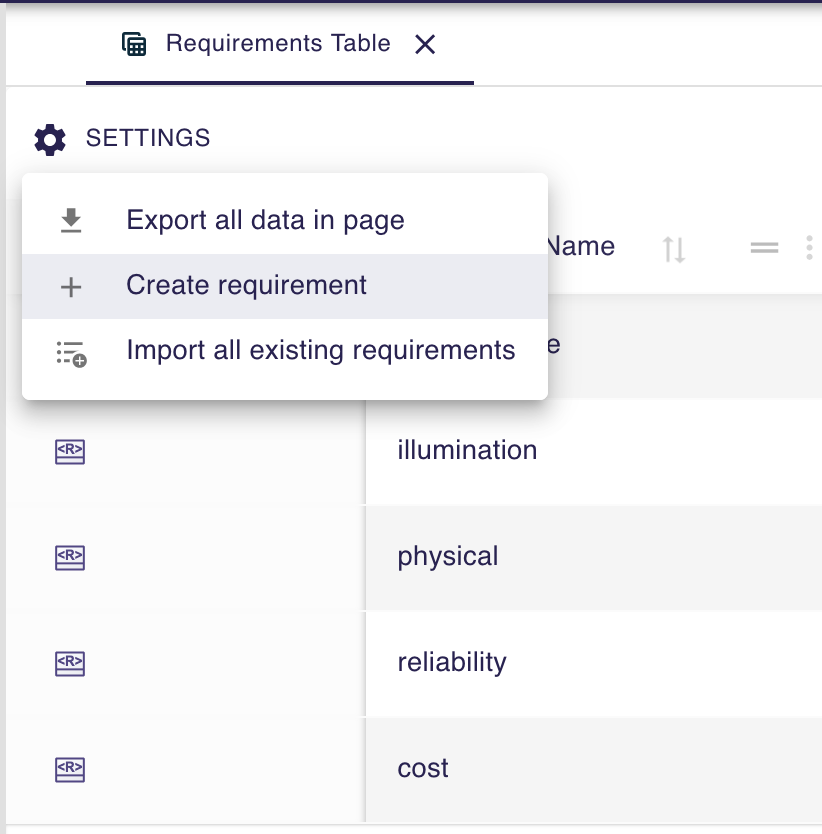
After clicking on this button, a new requirement is created and added to the table.
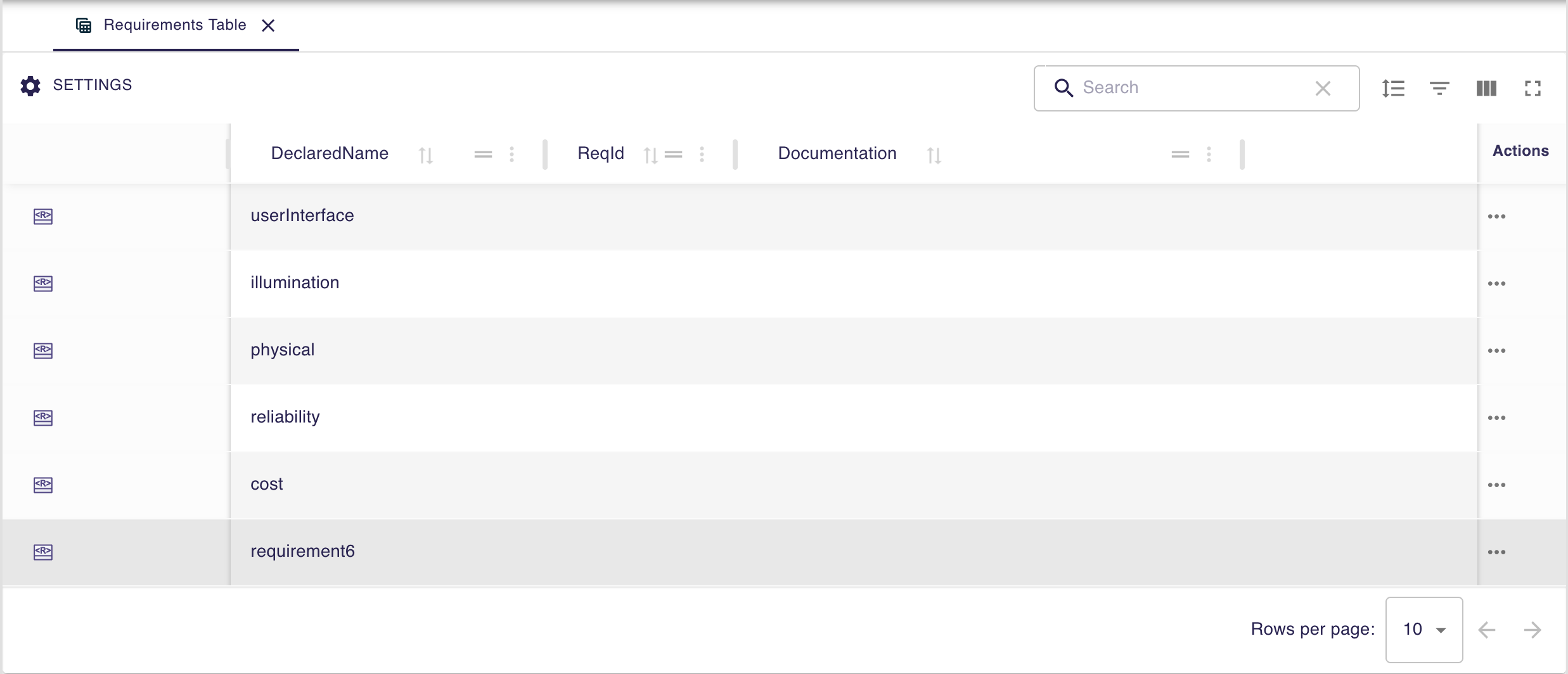
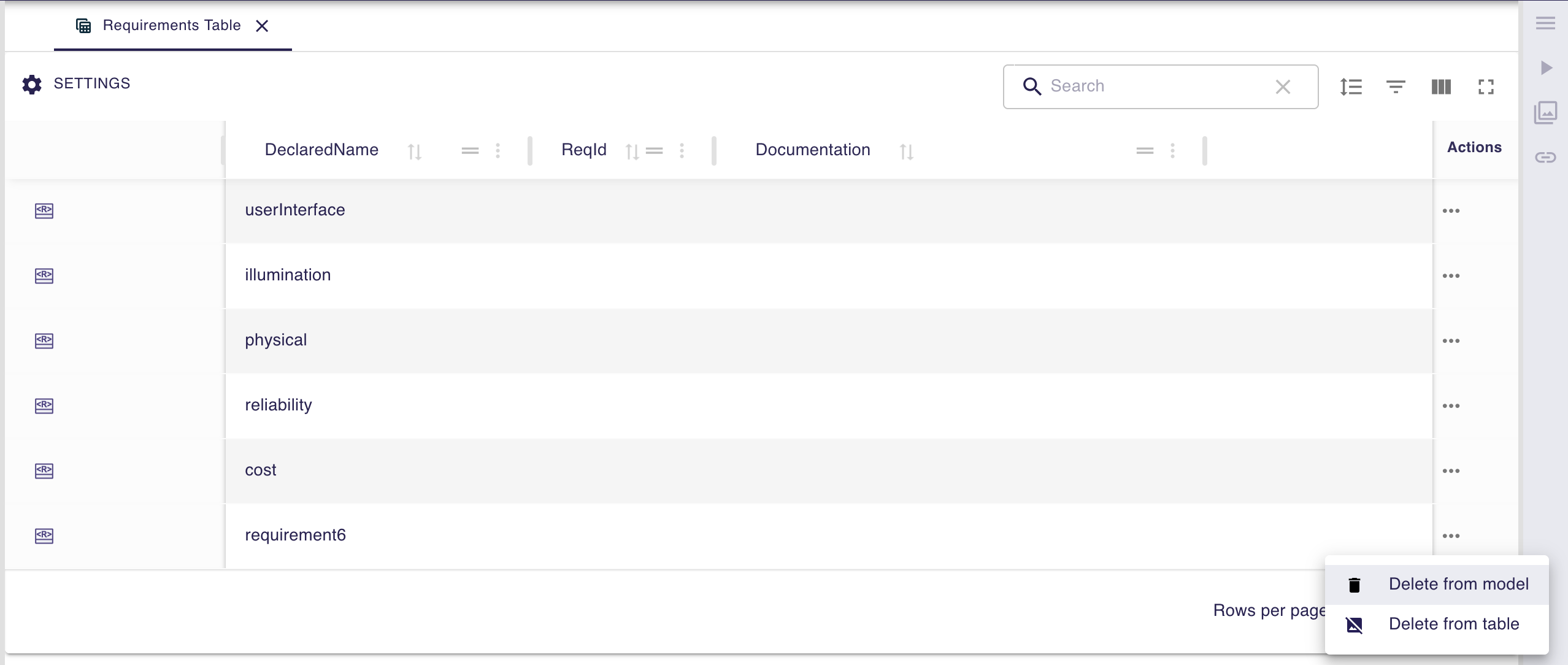
Users can delete a requirement by using the "…" button at the end of its row.
Two options are available: Delete from model and Delete from table.
Delete from model will delete the requirement from the model and from the table.
Delete from table will only delete the requirement from the table, but it will remain in the model.
3. Traceability features
Feel free to contact us for more details.