Elasticsearch integration
🔥 This feature is currently considered experimental. Try it out and give feedback by reporting bugs and suggesting new features. It’s not recommended for production use.
👥 This feature is available to all users.
SysON can be configured to index models in Elasticsearch. When configured, this feature transparently indexes models created and modified by users. These indices can be queried through the cross project search to find an element regardless of its containing project.
Let’s consider that you are trying to debug an issue related to the indexing of models in Elasticsearch. Elasticsearch comes with Kibana, a browser-based analytics and search dashboard that lets you visualize and manage your indices, among other features not covered here.
1. Install Elasticsearch
You can run the following command to install a development instance of Elasticsearch on your computer. This will install Elasticsearch (the index engine), and Kibana, a browser-based analytics and search dashboard that lets you visualize and manage your indices (among other features we won’t cover here).
curl -fsSL https://elastic.co/start-local | shIf you don’t want to install Elasticsearch directly on your computer, you can use the instructions below.
Start by creating a folder for the data:
mkdir -p VOLUME_PATH_ON_YOUR_COMPUTER
chmod 776 VOLUME_PATH_ON_YOUR_COMPUTER -R
Then start Elasticsearch:
docker pull elasticsearch:VERSION
docker network create elastic
docker run -d --name elasticsearch -m 2g --net elastic -p 9200:9200 -p 9300:9300 -e "discovery.type=single-node" -v VOLUME_PATH_ON_YOUR_COMPUTER elasticsearch:VERSION
Note the -m 2g parameter to limit the memory available to Elasticsearch; otherwise, at least under Linux, it tends to use a significant portion of the system’s memory.
Of course, you can adjust the actual value depending on your needs, but 2G should be enough for simple local development and testing.
Reset the password for the account elastic:
docker exec -it elasticsearch /usr/share/elasticsearch/bin/elasticsearch-reset-password -u elasticThe password will be written in the console. Now retrieve the enrollment token for Kibana:
docker exec -it elasticsearch /usr/share/elasticsearch/bin/elasticsearch-create-enrollment-token -s kibanaCopy the Elasticsearch certificate from the Docker container:
docker cp elasticsearch:/usr/share/elasticsearch/config/certs/http_ca.crt .Put this certificate somewhere on your computer and use it to test the connection to Elasticsearch.
curl --cacert PATH_TO_THE_CERTIFICATE/http_ca.crt -u "elastic:PASSWORD" https://localhost:9200Now let’s start Kibana:
docker pull kibana:VERSION
docker run -d --name kibana --net elastic -p 5601:5601 kibana:VERSION
Retrieve the Kibana verification code:
docker exec -it kibana /usr/share/kibana/bin/kibana-verification-codeAnd go to http://localhost:5601/ in a web browser to use both the enrollment token and the verification code to connect Kibana and Elasticsearch.
After all that, you may need to add the Elasticsearch certificate to the keystore of your JVM to allow Sirius Web to communicate with Elasticsearch:
sudo keytool -J-Duser.language=en -import -trustcacerts -alias elasticsearch-siriusweb -keystore PATH_OF_THE_JVM/lib/security/cacerts -file PATH_TO_THE_CERTIFICATE/http_ca.crt
keytool will ask you for a password for the JVM’s keystore.
If you never set a custom password, the default is changeit.
|
2. Configure SysON to use Elasticsearch
You can then configure your application.properties as follows
spring.elasticsearch.uris=https://localhost:9200
spring.elasticsearch.username=elastic
spring.elasticsearch.password=<Your password>
Or add the following program arguments to your launch configuration:
--spring.elasticsearch.uris=https://localhost:9200
--spring.elasticsearch.username=elastic
--spring.elasticsearch.password=<Your password>
Note that the Elasticsearch integration in Spring performs a scan of all the repositories on startup to detect Elasticsearch-compatible repositories. This scan happens regardless of whether Elasticsearch is configured with the properties above. SysON does not define such repositories, so the scan does not affect the application, but it generates messages that can pollute the backend logs. You can disable this scan with the following property:
spring.data.elasticsearch.repositories.enabled=false3. How to see what is in an index
Navigate to http://localhost:5601/ to open Kibana, open the left-side menu and select Elasticsearch > Index Management.
The page displays the list of indexes currently managed by Elasticsearch.
Each SysON editing context (that is, a project[1]) has its own index, named editing-context-<Editing Context ID>.
Click on an index to get high-level information (like the size of the index, the number of documents, etc). Click on the Discover index button to open the index and see the documents currently stored in it.
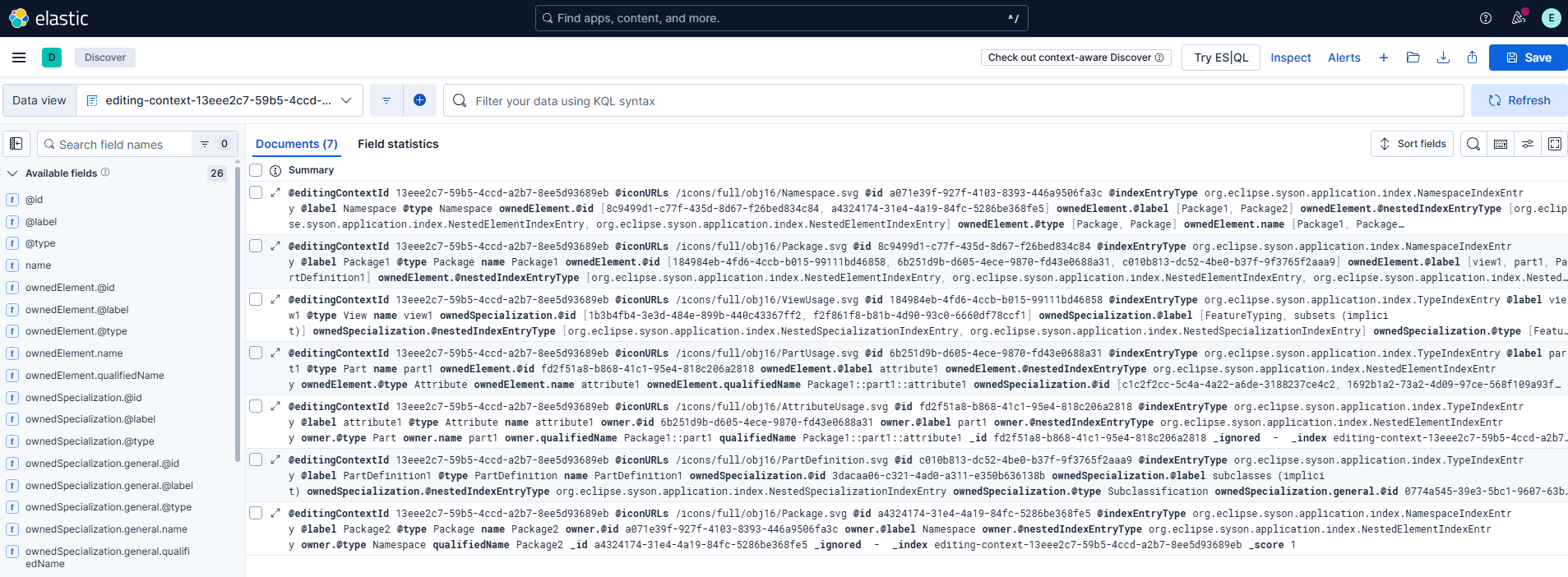
|
The Discover view can display only 500 documents. Use the fields in the left panel to filter the results, or see the next section to run queries on an index. |
4. How to run queries on an index
On most of the pages you’ll have access to the Console at the bottom of the workbench. Clicking on it opens a shell you can use to query your indices.
The shell supports various types of queries, such as full-text search, a Json-based query DSL, or ES|QL. The right panel displays the documents matching the last executed query.
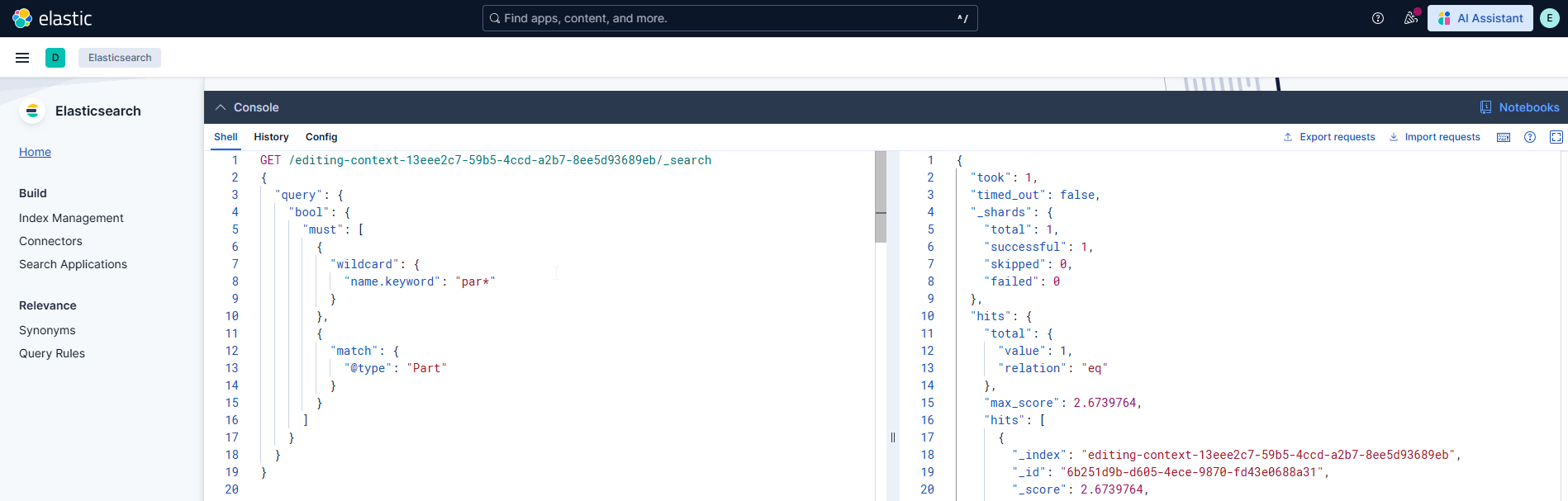
For example, you can perform a full-text search on a given index with the following query:
// Get all the documents matching the term "Batmobile".
GET editing-context-<Editing Context ID>/_search?q=Batmobile
You can use the query DSL to define more complex queries. For example, you can get all instances of a given type that have a name matching a given pattern:
// Get all the components with "Compo" at the beginning of their name
GET /editing-context-<Editing Context ID>/_search
{
  "query": {
    "bool": {
      "must": [
        {
          "wildcard": {
            "name.keyword": "Batm*"
          }
        },
        {
          "match": {
            "@type": "Part"
          }
        }
      ]
    }
  }
}
You can find more information on the Query DSL documentation.
Alternatively, you can define such complex queries with ES|QL, for example, you can get all the instances of a given type with the following query:
// Find all the instances of "Part", and show their name, id, and the index storing them.
POST /_query?format=txt
{
  "query": """
    FROM editing-context-* metadata _index
    | where @type == "Part"
    | keep name, @id, _index
  """
}
The query above uses a wildcard in the index name, so it queries all indexes that start with editing-context-.
ES|QL allows to define complex queries, including joins:
// Find the name of all the elements that are targeted by a ReferencingLink in a given editing context
POST /_query?format=txt
{
  "query": """
FROM editing-context-<Editing Context ID>
  | where @type == "Subsetting"
  // Rename because left and right columns in a join must have the same name. So we rename the column we want to lookup for.
  | rename general.id.keyword as id.keyword
  | lookup join editing-context-<Editing Context ID> on id.keyword
  | keep name
  """
}
Note that join queries do not support wildcards in their FROM clause.
You can find more information on the ES|QL documentation.
5. Data structure of indexed documents
SysON indexes the following fields for each Namespace element contained in user models:
-
@id -
@editingContextId -
@type -
@label -
@iconURLs -
name
-
shortName
-
qualifiedName
-
owner*
-
ownedElement*
-
ownedSpecialization* (only for
Typeelements, sinceNamespaceelements can’t have owned specializations)
Note that some fields are prefixed with @ to avoid clashes with specific SysML attributes we could index, but they can be used as any attribute in the queries.
Fields with a * are nested fields: they contain sub-fields based on the actual element they represent.
Plain Element objects contain the following sub-fields:
-
@id -
@type -
@label -
name
-
shortName
-
qualifiedName
Specialization objects contain the following sub-fields:
-
@id -
@type -
@label -
name
-
shortName
-
qualifiedName
-
general*
Since nested Element do not contain sub-fields for their own nested element, the maximum field depth of a given element is 2 for nested elements (e.g. ownedElement.name), and 3 for nested specializations (e.g. ownedSpecialization.general.name).
The example below shows a document representing a SysML Part "part1" which is typed by a PartDefinition, and contains an Attribute.
{
    "@editingContextId": "13eee2c7-59b5-4ccd-a2b7-8ee5d93689eb",
    "@id": "6b251d9b-d605-4ece-9870-fd43e0688a31",
    "@type": "Part",
    "@label": "part1",
    "@iconURLs": [
        "/icons/full/obj16/PartUsage.svg"
    ],
    "name": "part1",
    "qualifiedName": "Package1::part1",
    "owner": {
        "@id": "8c9499d1-c77f-435d-8d67-f26bed834c84",
        "@type": "Package",
        "@label": "Package1",
        "name": "Package1",
        "qualifiedName": "Package1"
    },
    "ownedSpecialization": [
        {
        "@id": "c1c2f2cc-5c4a-4a22-a6de-3188237ce4c2",
        "@type": "FeatureTyping",
        "@label": "FeatureTyping",
        "general": {
            "@id": "c010b813-dc52-4be0-b37f-9f3765f2aaa9",
            "@type": "PartDefinition",
            "@label": "PartDefinition1",
            "name": "PartDefinition1",
            "qualifiedName": "Package1::PartDefinition1"
        }
        },
        {
        "@id": "1692b1a2-73a2-4d09-97ce-568f109a93f4",
        "@type": "Subsetting",
        "@label": "subsets (implicit)",
        "name": "subsets (implicit)",
        "qualifiedName": "'subsets (implicit)'",
        "general": {
            "@id": "0c6a9942-4bb9-58da-8344-57ecd220d4de",
            "@type": "Part",
            "@label": "parts",
            "name": "parts",
            "qualifiedName": "Parts::parts"
        }
        }
    ],
    "ownedElement": [
        {
        "@id": "fd2f51a8-b868-41c1-95e4-818c206a2818",
        "@type": "Attribute",
        "@label": "attribute1",
        "name": "attribute1",
        "qualifiedName": "Package1::part1::attribute1"
        }
    ]
}|
SysML and KerML standard libraries are not indexed at the moment for performance reasons. |