Expressions
SysON supports the visualisation, creation and edition of SysML v2 expressions directly using their natural textual representation.
1. Visualisation
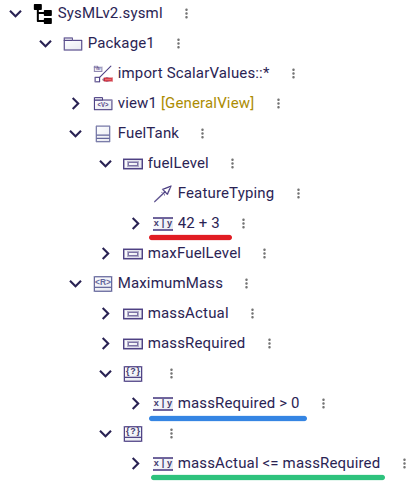
In the Project Explorer view, elements corresponding to top-level expressions display the textual representation of the whole expression:
By default, the internal structure of the expressions is hidden, but can be revealed by disabling the Hide expression internals filter:
Internals hidden (default) |
Internals visible |
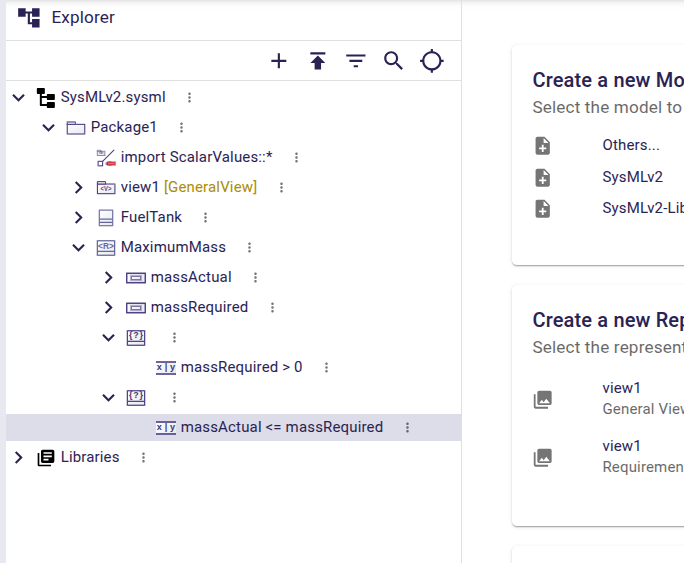
|
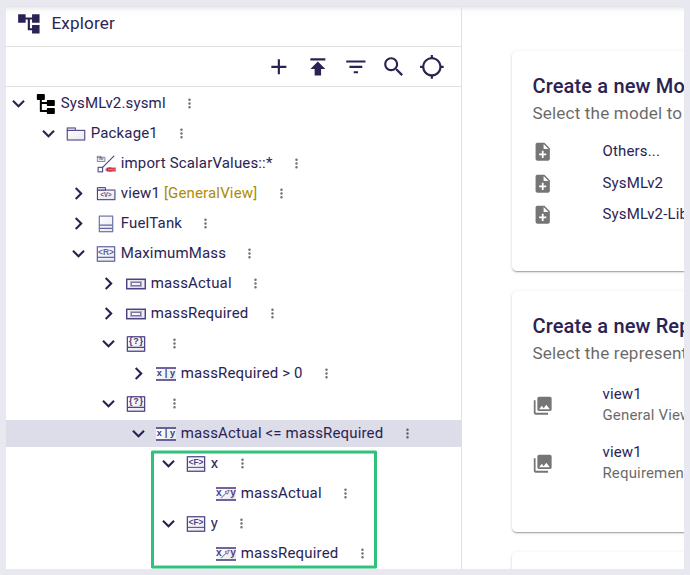
|
When an Expression element or an Element which contains a single Expression element is selected (for example from the Project Explorer view), the Details view displays the textual representation of the expression, with a button to open the expression edition modal (see below) directly on it:
+ image::expression-details.png[Expression value displayed in the Details veiw, width=80%]
2. Creation
To create an expression, invoke the New expression action on a compatible element (supported elements are Attributes, Constraints, Successions and Transitions).
The action is only available on elements which can own an expression but do not have one yet.
-
In the Project Explorer view, this is available in the element’s context menu.
-
In a Diagram, it is available in the Edit section of the element’s palette (if applicable).
-
In the Details view, it is available as a
+button on the Expression value widget (if present).
A modal will open where you can enter the textual representation of the expression to create. Click on the Update button to validate.
-
If the expression entered is valid, it will be created and the modal will be automatically close.
-
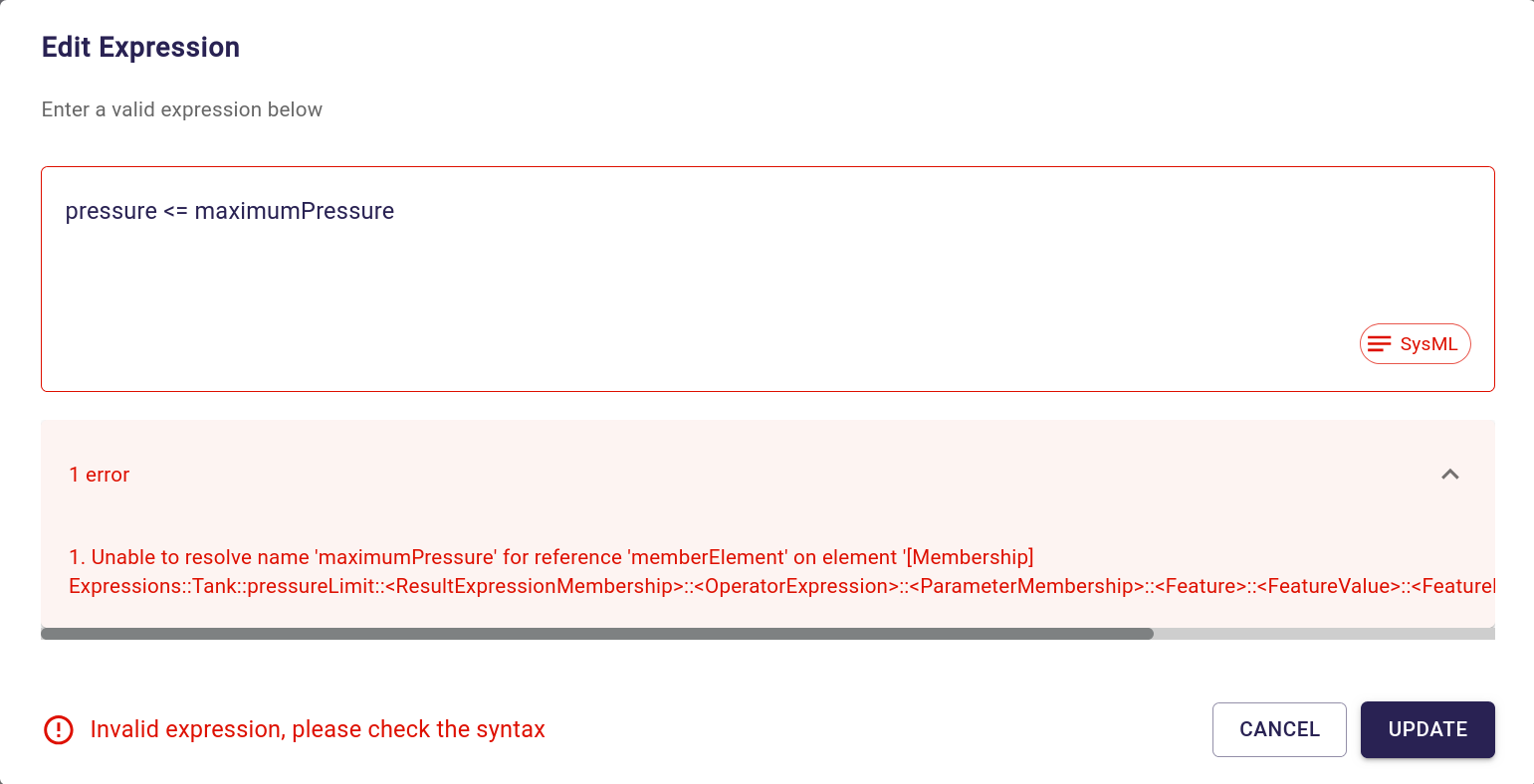
If the expression entered is not valid, the modal will be kept open and show the error(s) in an expandable accordion. Fix any error reported before clicking on Update again (or canceling the operation).
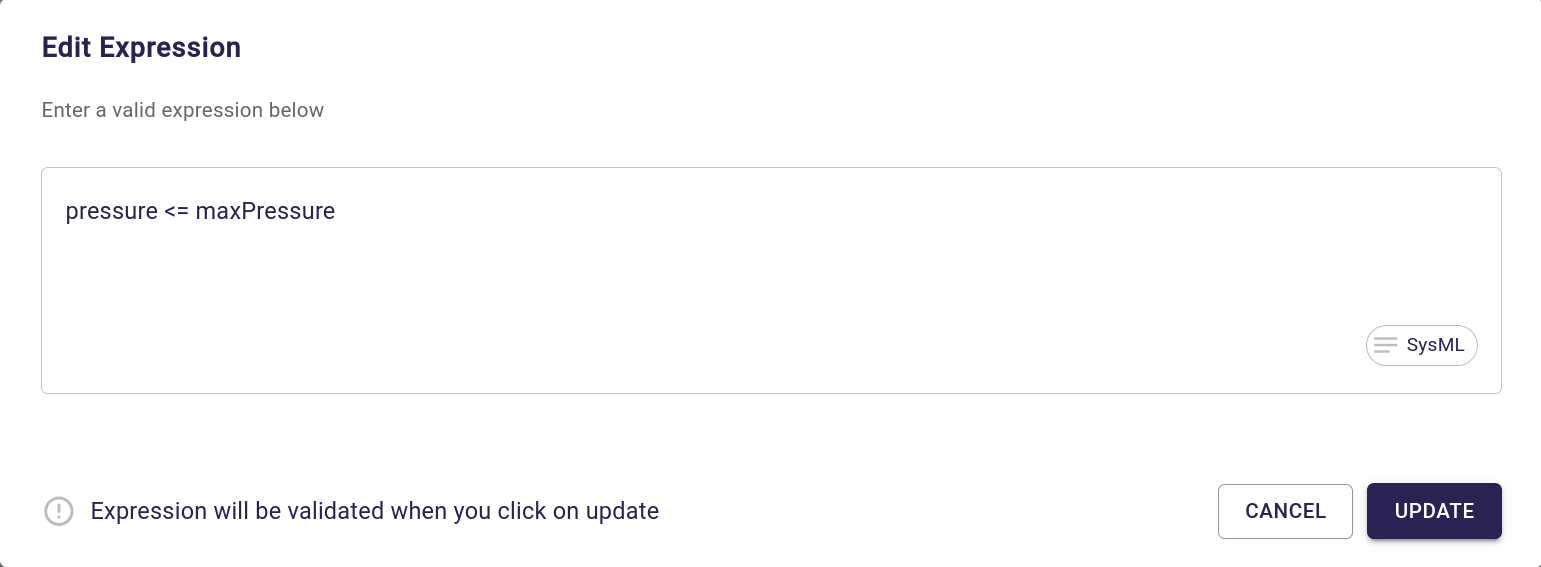
When the expression belongs to a FeatureValue context, such as the value of an AttributeUsage, the modal also displays two additional checkboxes:
-
Default value
-
Initial value
These checkboxes allow editing the properties of the owning FeatureValue together with the expression text.
They are only shown when the selected semantic element can host a FeatureValue; they are not shown for expression contexts such as ConstraintUsage or transition guard expressions.
+ image::expression-feature-value-properties-placeholder.png[Expression modal checkboxes in a FeatureValue context, width=60%,height=60%]
3. Edition
To edit an already existing expression, invoke the Edit expression action directly on the existing expression or on its parent element. In the Project Explorer view, this is available in the element’s context menu. In a Diagram, it is avilable in the Edit section of the element’s palette (if applicable).
The same modal as for expression creation will open, but with the current textual representation of the expression pre-filled.
Edit the textual representation of the expression as required, and click on the Update button or hit Ctrl-RET to validate.
As for expression creation, the change will only be applied if there are no errors detected; otherwise the modal will display any errors (e.g. names used in the expression that can not be resolve to existing elements) so that you can fix the input.
If the edited expression is owned by a FeatureValue, the Default value and Initial value checkboxes are also pre-filled with the current state of the owning FeatureValue.
Updating either checkbox and applying the dialog persists the change together with the expression edition.
+ image::expression-feature-value-properties-placeholder.png[Expression modal checkboxes in a FeatureValue context, width=60%,height=60%]
Note that if the new text value entered for the expression is empty, applying the change will delete the expression.
4. Deletion
To delete an existing expression, you can simply invoke the normal Delete menu item action on the expression itself or the new Delete expression on its parent element.
You can also open the Edit expression modal, clear the text and apply the change; this will also delete the expression.